

Setup guide · iPhone, iPad, Android & desktop
A morning nudge.
No account required.
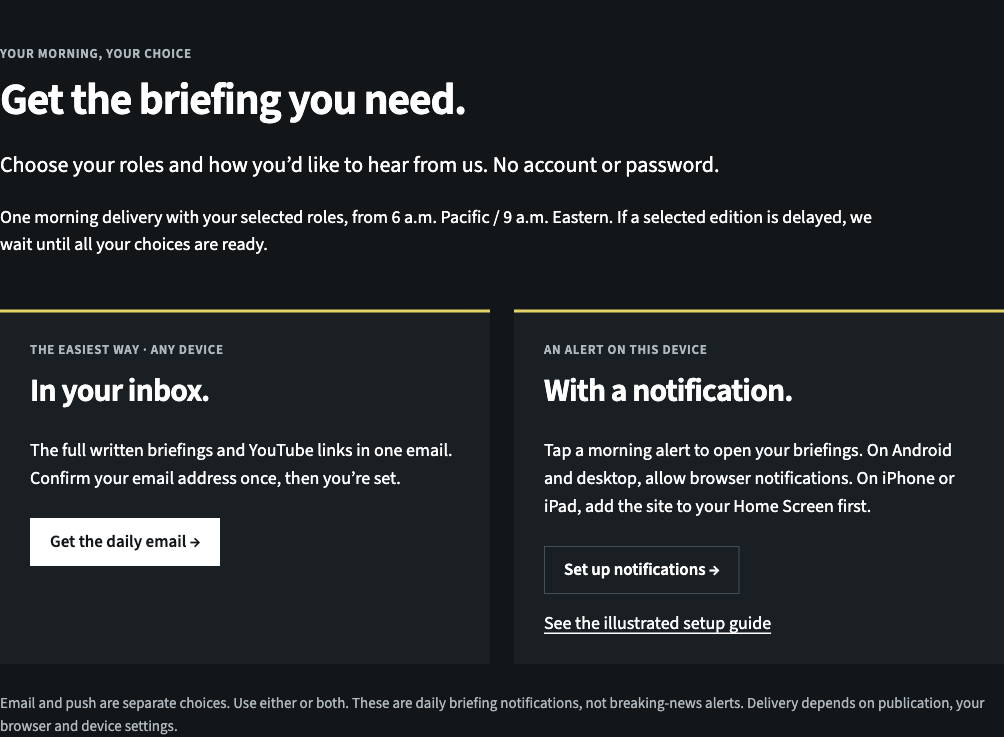
Email is the quickest option on any device. Push adds a notification you can tap to open your briefings.
iPhone & iPad · iOS / iPadOS 16.4 or later
Add it. Open it. Allow it.
Apple requires a Home Screen web app for push. A normal browser tab won’t receive these notifications.
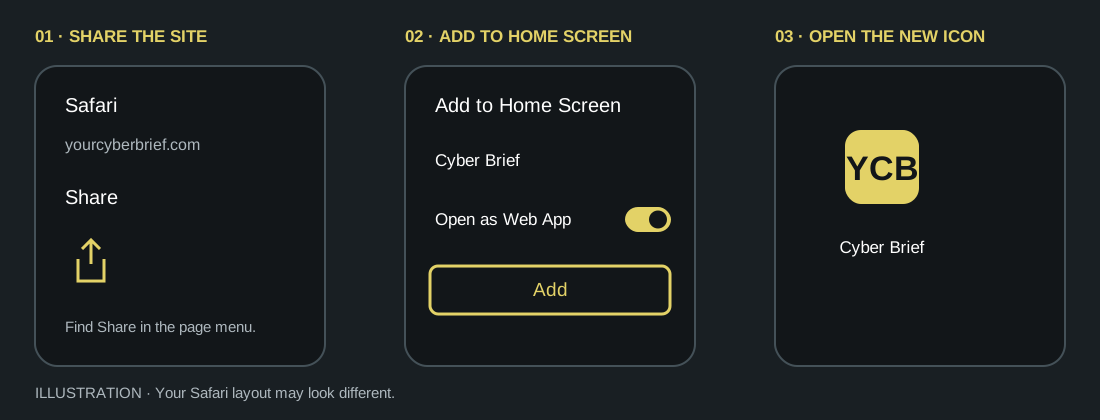
- Open yourcyberbrief.com in Safari. Open the page menu if needed, then tap Share (the square with an upward arrow).
- Choose Add to Home Screen. You may need to scroll the Share sheet. If it’s missing, use Edit Actions. Keep “Open as Web App” on if Safari shows that switch, then tap Add.
- Open the new Cyber Brief icon on your Home Screen. Choose Get it daily, then Set up notifications. You must enable push from this installed app.
- Choose your roles, check the consent box, and tap Enable notifications. When iOS asks, tap Allow. The page then confirms that your roles are saved.
Apple’s Home Screen guide and Web Push requirements.
Android · a current browser with push support
Open the site. Choose. Allow.
- Open the site in Chrome or another supported browser. If you arrived inside an app such as a social feed, open the link in your regular browser.
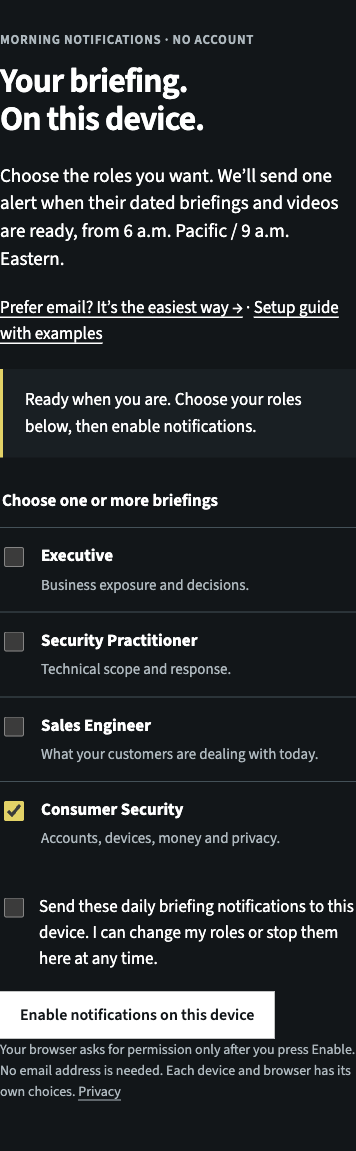
- Open Notifications and choose your roles. Check the consent box and press Enable notifications on this device.
- Allow the browser’s notification request. When the page says your roles are saved, you’re subscribed. Adding the site to your Home Screen is optional on Android.
You can receive push while the page is closed. Your browser, Android notification settings, battery restrictions and connection can affect when it arrives.
Mac, Windows & Linux · supported browsers
The same choices, at your desk.
Open Notifications in a current Chrome, Edge, Firefox, or supported Safari on macOS. Choose your roles, agree to morning notifications, press Enable and allow the browser request. This page checks whether push is available before offering setup. Browser and operating system notification settings both need to allow it. Some desktop browsers need to remain running in the background; fully quitting the browser can pause delivery.
Change your mind. Or fix a snag.
- Change roles or stop push
- Return to Notifications in the same browser or Home Screen app. Save new choices, or press Stop notifications on this device. Repeat on other devices. Your email subscription is managed separately from any email.
- Chrome says “Automatically blocked” or no Allow prompt appears
- Click the controls icon beside yourcyberbrief.com in Chrome’s address bar. Turn Notifications on. If the switch is missing, choose Site settings → Notifications → Allow. Return to the form and press Enable again. This changes permission for this site only.
- “Notifications are blocked”
- We can’t reopen a request you denied. Use your browser’s site permissions to allow notifications for yourcyberbrief.com, then reload. On iPhone or iPad, also check Settings → Notifications → Cyber Brief. If needed, remove and add the Home Screen app again.
- No setup button, or a browser error
- Use a current browser in a normal window. Private browsing, in-app browsers, organization policy or unsupported software can prevent push. On iPhone and iPad, open the Home Screen app. Email works without these steps.
- No morning alert
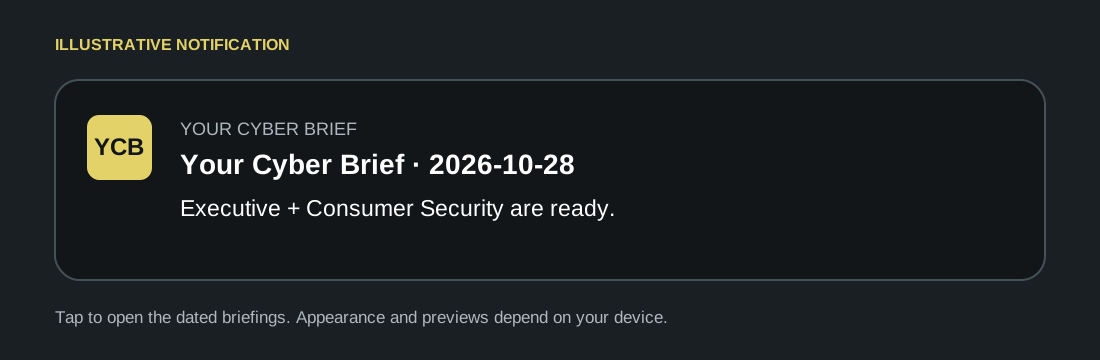
- We send one notification per day only after every role you selected has its dated written briefing and video ready. If an edition is delayed, we wait and check again through the morning. We don’t send older editions as today’s news. Check the site’s date and delay notice, your connection, Focus / Do Not Disturb, and browser and system notification settings. A successful subscription does not guarantee a particular arrival time.
- Will it work on my other phone?
- Set it up on each device and browser separately. No account links them together. Clearing browser storage or reinstalling the Home Screen app can remove your setup; revisit this page to check.
Daily briefing notifications only. Breaking-news alerts are not included. Push providers process the delivery endpoint and encrypted message; see Privacy.